ALAN Captcha Admin Panel
The ALAN Captcha Admin Panel is the central place to manage your ALAN Captcha account, create and manage SiteKeys, ApiKeys and Monitor Tags, and view statistics about your usage. It is available at my.alancaptcha.com.
The next three steps will guide you through the process of setting up your ALAN Captcha account, including creating a SiteKey and ApiKey.
1. Account creation
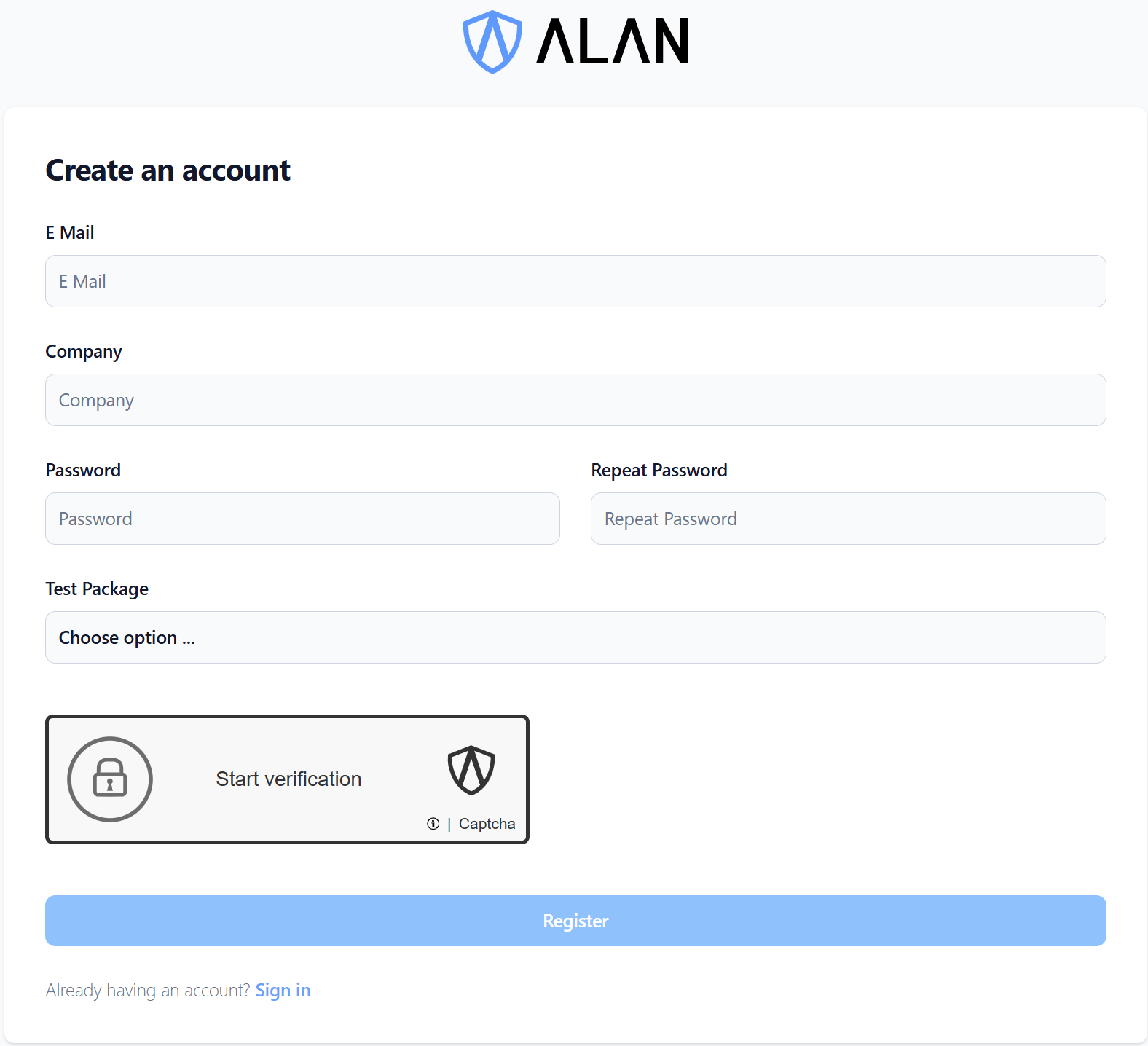
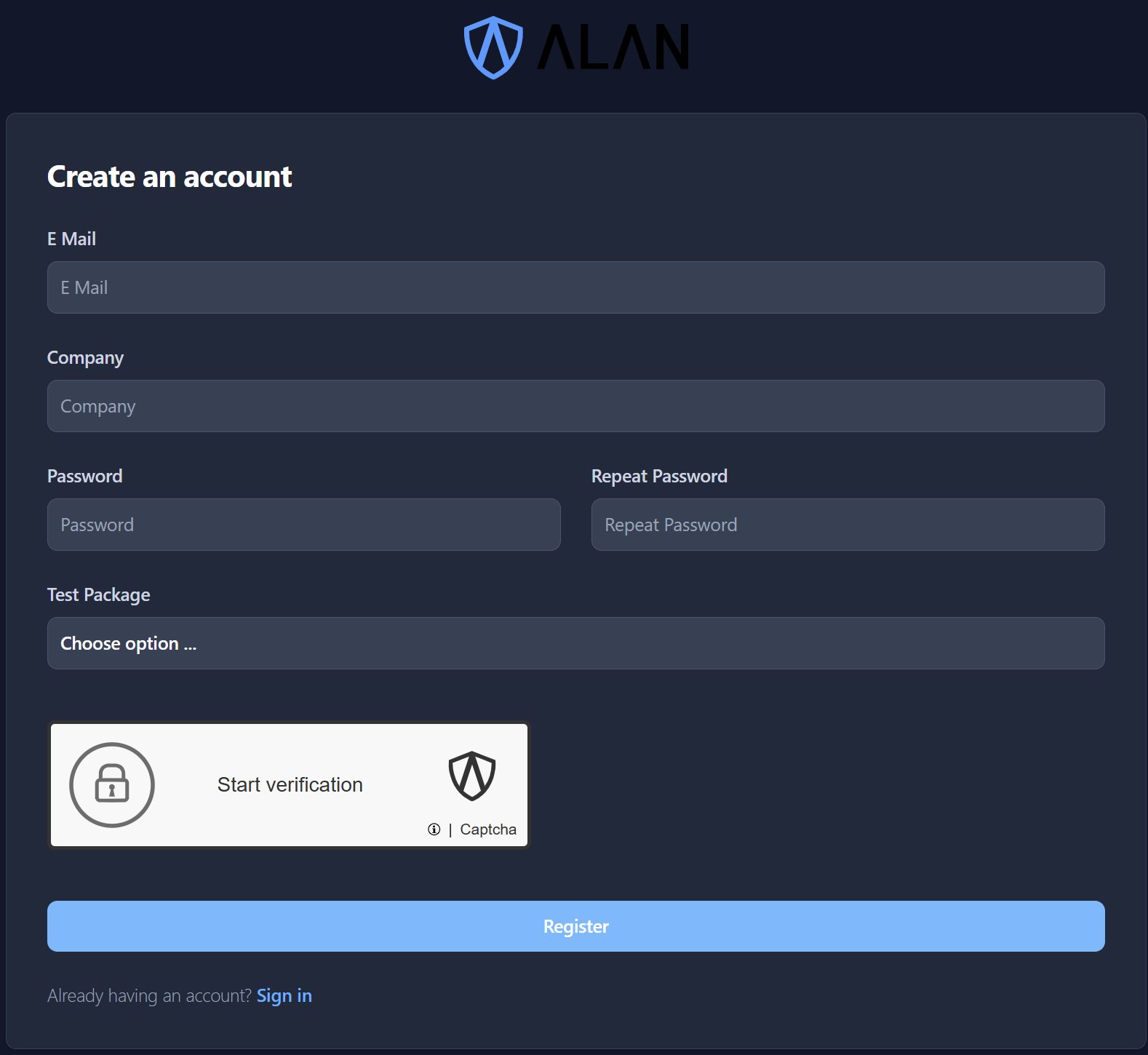
The first step to use ALAN Captcha is to register your website or web application on our ALAN Captcha Admin Panel to obtain a SiteKey and ApiKey. To do so, you first need to create an account.
In the field Test Package you can select an optional test package, to try out ALAN Captcha's premium features for free for a limited time. This is not required to use ALAN Captcha. More information about packages and pricing can be found on our website.
After you entered your details, you will receive a confirmation email. Click the link in the email to confirm your account.
Now you can log in to the ALAN Captcha Admin Panel using your email as your username on the Login Page.
2. Creating a SiteKey
Once you are logged in, you see the list of your existing SiteKeys. If you don't have any SiteKeys yet, you can create a new one by clicking on the Add Site Key button.
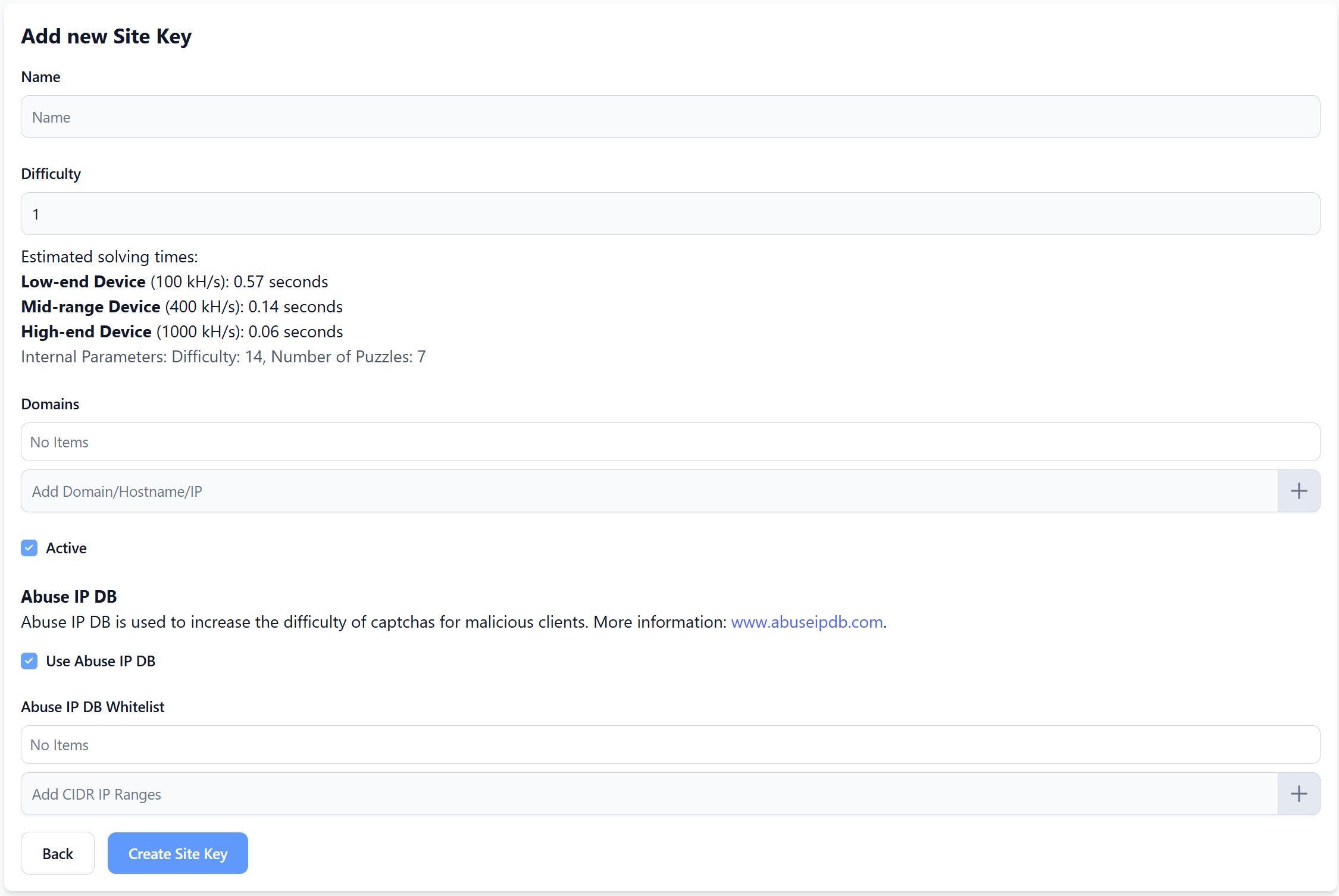
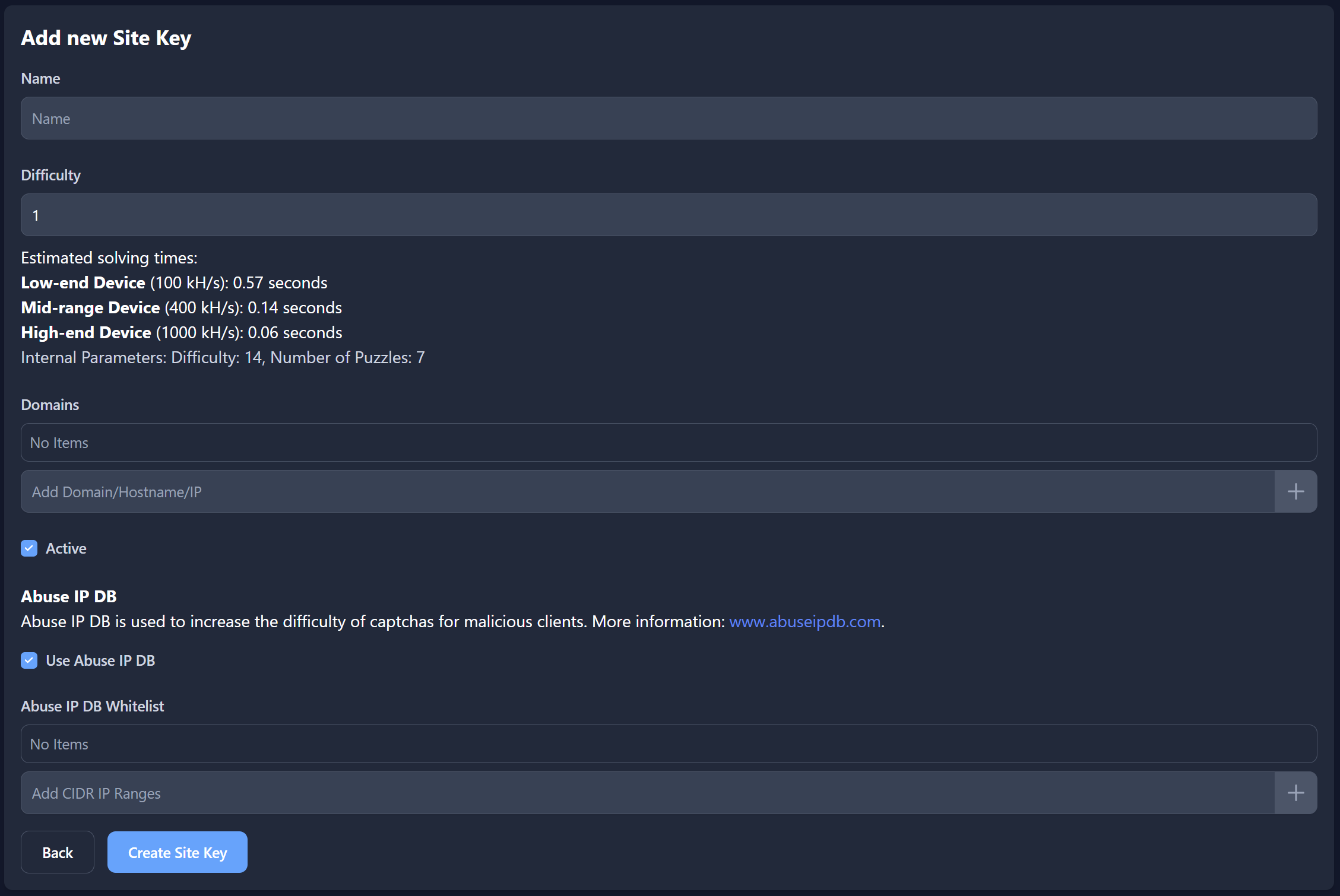
After clicking the button, you will be prompted to enter the details for your new SiteKey. You need to provide a name for the SiteKey, which can be anything that helps you identify it later.
The other important fields are the following:
Difficulty determines how difficult the captcha will be for users. The higher the difficulty, the longer it will take for users to solve the captcha, but it will also be more secure against bots. Estimated solving time is displayed to help you choose the right difficulty for your use case.
Domains is a list of domains where the captcha can be used. It is possible to enter multiple domains. Additionally, if your package allows it, you can leave this field empty to allow the captcha to be used on any domain.
Abuse IP DB can be used to enable the integration with the AbuseIPDB service. This is used to increase the difficulty of the captcha for users with a bad reputation. Additionally, you can add CIDR ranges to whitelist specific IP addresses or ranges from the AbuseIPDB check. This is useful if you want to allow certain IP addresses to bypass the check.
With every created SiteKey, the system automatically creates a Monitor Tag named 'general' associated with the SiteKey. More information on Monitor Tags can be found here.
2. Creating an ApiKey
The next step is to create an API Key, which is used to verify the captcha on your server. To do so, navigate to My Customer. Here you can see all the information about your customer account, including your API Keys.
To add a new API Key, click the Add Api Key button in the Api Keys section.


Once you have created the ApiKey, you can copy it and use it in your application to verify the captcha. A list of all your ApiKeys is available on the My Customer page in the Api Keys section. You can also delete ApiKeys that you no longer need.
Any ApiKey can be used together with any SiteKey, so you can create multiple ApiKeys for different purposes or environments (e.g. development, staging, production).
🔥 Now you are finished setting up ALAN Captcha and can start using it in your application! 🔥
Monitor Tags
Monitor Tags are used to monitor the usage of a SiteKey. A SiteKey can have multiple Monitor Tags assigned. These different Monitor Tags can be used to track the usage of a SiteKey in different parts of your application (e.g. login, registration, contact form, etc.).
To manage all your Monitor Tags, navigate to the Monitor Tags tab in the ALAN Captcha Admin Panel.
To view statistics for a SiteKey click on the blue statistics icon next to the SiteKey in the list of SiteKeys. This will open a new page with detailed statistics for the SiteKey, grouped by Monitor Tags associated with the SiteKey.
The statistics will look like this:
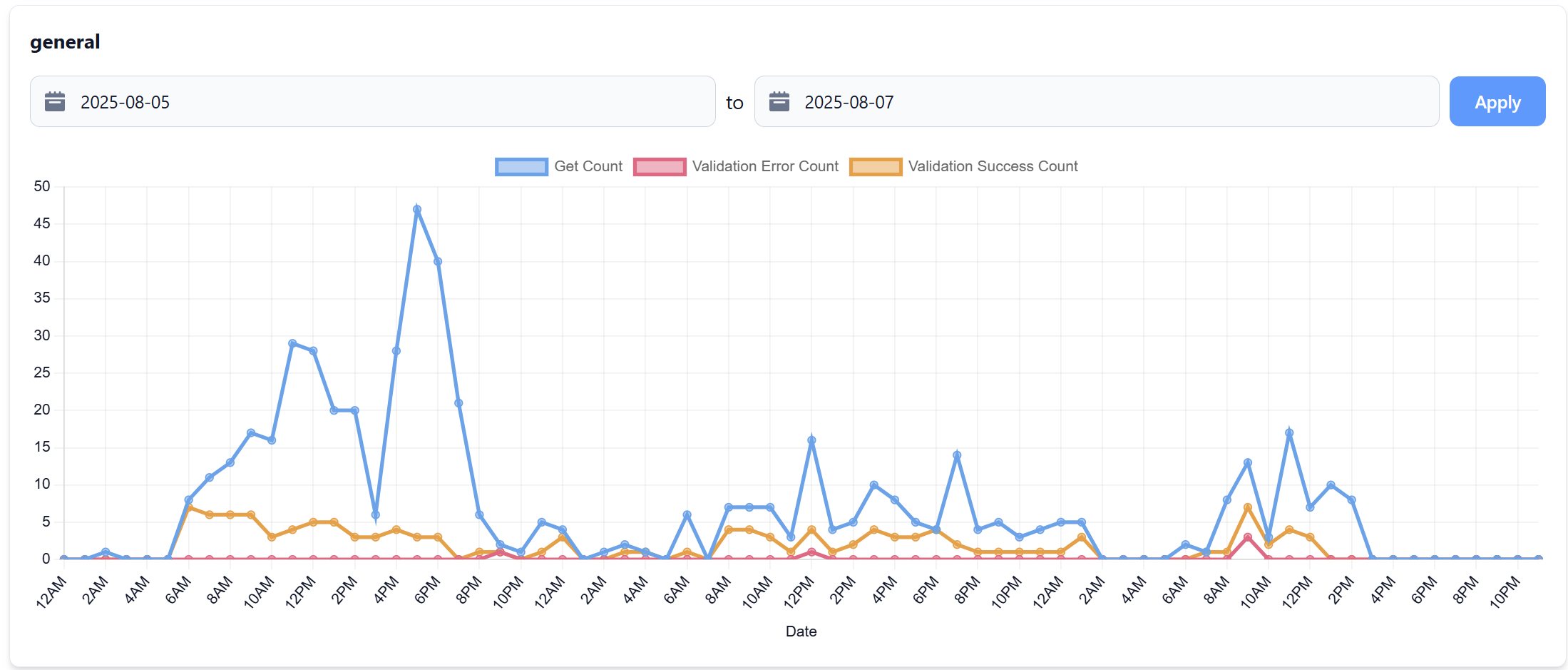
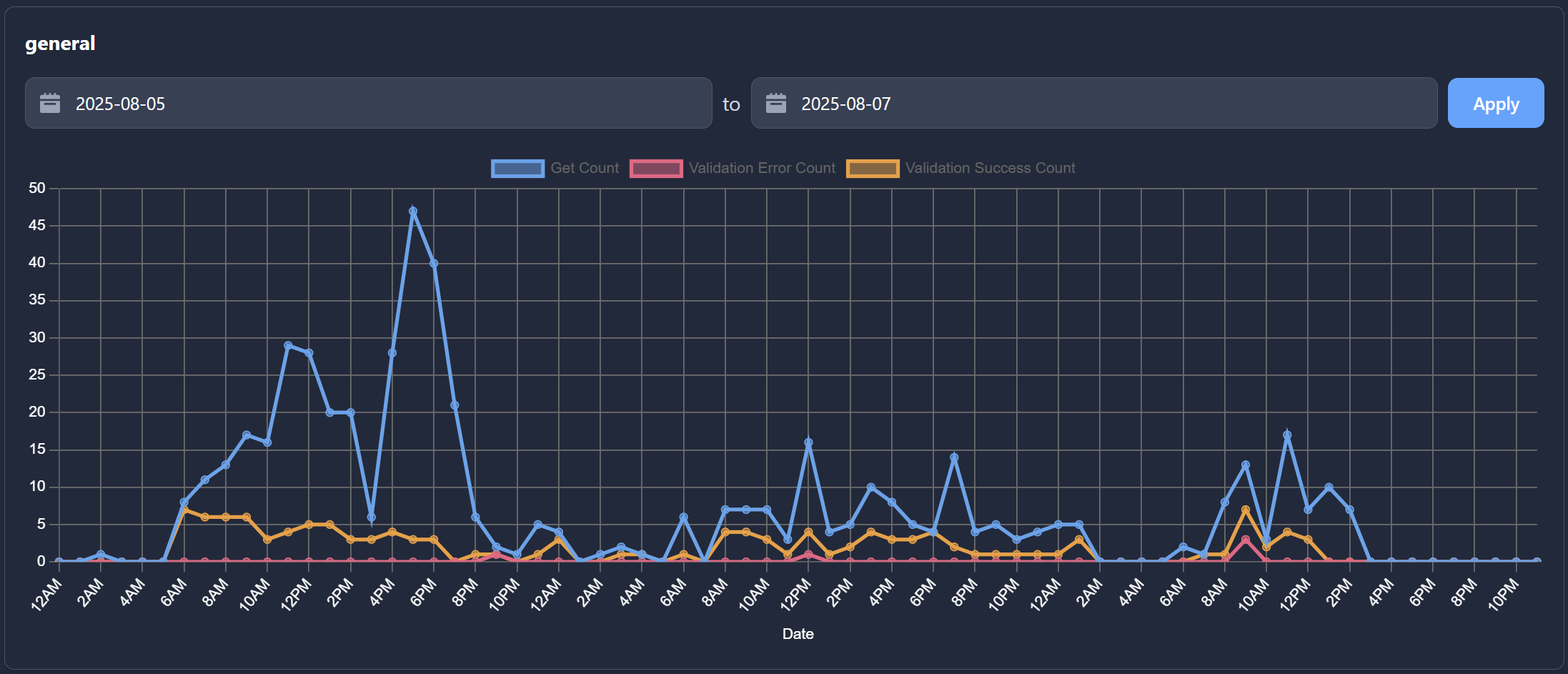
'Get Count' is the amount of challenges that were requested for the SiteKey, 'Validation Error Count' is the amount of challenges that were submitted but invalid, and 'Validation Error Count' is the amount of challenges that were successfully validated.
This gives interesting insights into the usage of your SiteKey, as a very high 'Validation Error Count' could mean that someone is trying to submit forms without solving the captcha.
Accounts
On the Accounts tab you can manage all accounts that are associated with your customer. A customer can have multiple accounts, that can all be used to manage the customer.
There are two different types of accounts: Customer and CustomerRestricted.
Customer accounts have full access to the customer and can manage all SiteKeys, ApiKeys and Monitor Tags. They can also create and manage other accounts. The account that you created during registration is a Customer account.
CustomerRestricted accounts have full access to all SiteKeys, ApiKeys and Monitor Tags. However, they are not able to modify the customer or manage other accounts. This type of account is useful for users who should only be able to manage the ALAN Captcha integration, but not the customer itself.
It is not possible to delete your own account. To do so, please contact support at contact@webundco.com.
By clicking the Add Account button you can create a new account. There you can choose the type of account and enter a username and password.